↓
 

Computer Aid

Ph: 0402 133 866

  • Home
  • Blog
  • Contact
  • Web Services
    • Websites
    • SEO
    • Hosting
    • Domain Names
    • Portfolio
Home→Tags system restore

Tag Archives: system restore

Controlling XP system restore on large drives

Computer Aid Posted on 23 August, 2009 by Luigi Martin23 August, 2009

Its a problem thats annoyed me for a long time: Huge hard drives, and system restore taking up to 12% of the drive.

Whats even more annoying, is the lack of fine control over reserving a small amount of disk space.

For example, on a 1000Gb (1 Terabyte) hard drive, 12% represents over 110Gb for system restore (which is a crazy amount)

I have a 500Gb drive, and SR wants to allocate 57Gb for system restore:
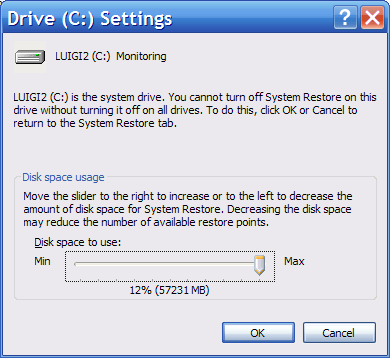
systemrestore-orig-big

But: You can change it. You go to control panel -> System -> System Restore -> C: -> settings

And then move the slider down from 12% to 1%, and I’m now using “only” 6Gb (on a 500Gb drive):
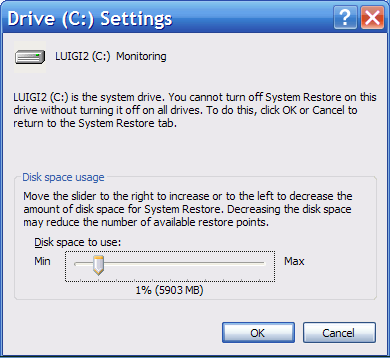
systemrestore-orig-small

I’ve found that 1.5Gb is usually enough to store at least 2 weeks of default restore points (ie automatically generated restore points). Plus I really don’t see the need for having more than about 15 restore points anyway.

Unfortunately, when you move the slider 1 notch to the left, SR drops from 6Gb to 0.2Gb (200Mb).

It would really annoy me that I could not control SR to give myself 1.5Gb of system restore space.

Well, with a bit of hunting around, I found a reasonable workaround (which requires changing 1 entry in the system registry).

Run Regedit, and go to: HKLM -> software -> microsoft -> windows nt -> currentversion -> systemrestore

There is a dword value called DiskPercent thats set to “C” (12)

What does it do? it sets the maximum disk percentage that is shown on the slider in the drive settings window for system restore

Modify DiskPercent (double click on the word), and change the value to 1 (so now the slider will go from 0% up to 1%)

Close regedit, and any control panel windows you have open.

Now when you go to: control panel -> System -> System Restore -> C: -> settings

You will see the slider goes from 0% up to 1% (instead of 12%):
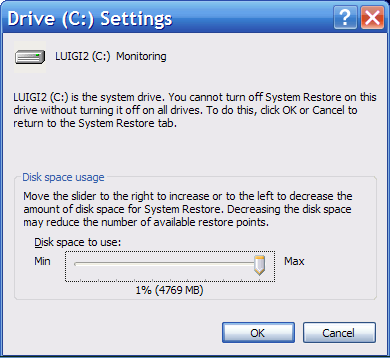
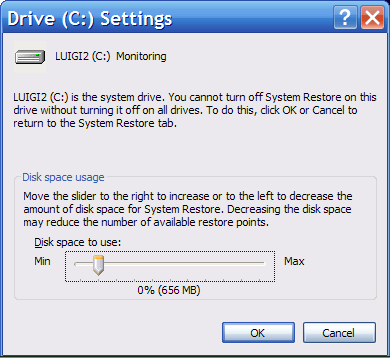
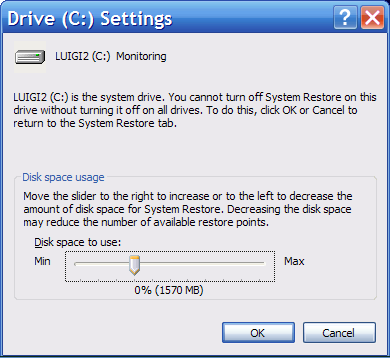
systemrestore-reduced-bigsystemrestore-reduced-smallsystemrestore-optimal

And as you can see, setting 1.5Gb of system restore space is much easier now!

Posted in Technical | Tagged big drive, system restore

system restore is not able to create a restore point

Computer Aid Posted on 11 February, 2009 by Luigi Martin11 February, 2009

Customer had some strange problems with one of his PCs

System Restore could not create or restore “restore points”.

And the internet was not working (it actually was working, but seemed intermittent)

Creating a restore point would result in the message: system restore is not able to create a restore point

Restoring from a restore point would just get to the “Confirm restore point selection, then pressing the NEXT button did nothing.

I tried disabling and enabling sys restore, but no luck.

I tried line 278 from kellys-korner-xp.com/xp_tweaks.htm, but no go.

At some point I also noticed that disk defragment also didn’t work… very strange symptoms

Next I tried sfc /scannow

That seemed to work… but after a few minutes, system restore stopped working again… curious!

I was starting to suspect that Spyware Doctor (paid version) might have been interfering somehow. It would occasionally say that an internet computer was trying to connect (which we blocked). The customer swore it was a great program (but I’ve had some difficulties with Spyware Doctor in the past).

Looking at Spyware Doctor closely, I noticed it would appear to do its normal update, but the status screen showed that it was several weeks since the last successful update.

I disabled Spyware Doctor, but that didn’t change things

But then telling an antivirus/antispyware to disable itself doesn’t always mean its really disabled.

So I totally uninstalled it… and installed antiVir, windows defender… but neither would update…

I then tried SuperAntiSpyware… and it also wouldn’t update.

I tried scanning with Superantispyware (even though it was out of date by a few weeks), and it detected a trojan infection.

The infected file was a backup from the customers main PC… So now I widened my work to the main PC as well.

In the end, both PCs were infected with trojans and rootkits.

I was able to fix the main PC, as it wasn’t showing any sign of being infected (so I could update antivir/defender/superantispyware and remove all nasties)

But the other PC had so many files on it, that the scan process was incredibly slow.

So in the end, I took it back to the office, scanned the HDD from my main PC (and removed some infections).

But that was still not enough to allow any updates.

In the end I downloaded the latest version of SAS, installed it, and it managed to clear up everything.

I must say that in cases like this, SuperAntiSpyware has a huge advantage over many of its competitors: Downloading the latest version also downloads the latest malware definitions.

Most other security software seems to be a few months out of date, and relies on the user to perform an update once the software is installed.

Thats crazy, as nowadays, a lot of malware targets security updates first, such that the anti-malware program is virtually useless unless it can do an update.

Posted in Technical | Tagged SaS, Spyware Doctor, system restore

Archives

Categories

Recent Comments

  • Sue Jones on outlook error 0X800ccc0e while sending emails
  • Blair Newmann on AdSmartMedia advertising
  • Private Investigator in GTA on Divorce, consent orders, and superannuation splits: getting the wording correct

Tags

802.11g ADSL amd android bigpond broadband bsod defender dell email exitjunction firefox firewall gmail Google google contacts ie7 infection internet connection ISP laptop Linux m1188a ntldr is missing office 2007 outlook outlook express password power supply problems ram registry repair install sata scam slow telstra thunderbird usb vista wifi windows 7 wireless wordpress xp
Copyright © 2005-2015 Computer Aid
↑